mirror of
https://github.com/ChenQihan666/MyBlog-Next.git
synced 2026-08-14 11:29:33 +08:00
 Patrick Wilson
7573617e79
Patrick Wilson
7573617e79
* feat: add archives page with configurable menu

* optimize: compat mobile layout

* fix: update archive menu layout

* fix: hide archives page from URL if showArchives is false

* docs: add `showArchives` option in docs

Resolves #361

---------

Co-authored-by: satnaing <satnaingdev@gmail.com>
170 lines
10 KiB
Markdown
170 lines
10 KiB
Markdown
---
|
|
author: Sat Naing
|
|
pubDatetime: 2022-09-23T04:58:53Z
|
|
modDatetime: 2024-10-14T09:27:28.605Z
|
|
title: How to configure AstroPaper theme
|
|
slug: how-to-configure-astropaper-theme
|
|
featured: true
|
|
draft: false
|
|
tags:
|
|
- configuration
|
|
- docs
|
|
description: How you can make AstroPaper theme absolutely yours.
|
|
---
|
|
|
|
AstroPaper is a highly customizable Astro blog theme. With AstroPaper, you can customize everything according to your personal taste. This article will explain how you can make some customizations easily in the config file.
|
|
|
|
## Table of contents
|
|
|
|
## Configuring SITE
|
|
|
|
The important configurations lies in `src/config.ts` file. Within that file, you'll see the `SITE` object where you can specify your website's main configurations.
|
|
|
|
During development, it's okay to leave `SITE.website` empty. But in production mode, you should specify your deployed url in `SITE.website` option since this will be used for canonical URL, social card URL etc.. which are important for SEO.
|
|
|
|
```js
|
|
// file: src/config.ts
|
|
export const SITE = {
|
|
website: "https://astro-paper.pages.dev/",
|
|
author: "Sat Naing",
|
|
desc: "A minimal, responsive and SEO-friendly Astro blog theme.",
|
|
title: "AstroPaper",
|
|
ogImage: "astropaper-og.jpg",
|
|
lightAndDarkMode: true,
|
|
postPerPage: 3,
|
|
scheduledPostMargin: 15 * 60 * 1000, // 15 minutes
|
|
showArchives: true,
|
|
editPost: {
|
|
url: "https://github.com/satnaing/astro-paper/edit/main/src/content/blog",
|
|
text: "Suggest Changes",
|
|
appendFilePath: true,
|
|
},
|
|
};
|
|
```
|
|
|
|
Here are SITE configuration options
|
|
|
|
| Options | Description |
|
|
| --------------------- | -------------------------------------------------------------------------------------------------------------------------------------------------------------------------------------------------------------------------------------------------------------------------------------------------------------------------------------------------- |
|
|
| `website` | Your deployed website url |
|
|
| `author` | Your name |
|
|
| `desc` | Your site description. Useful for SEO and social media sharing. |
|
|
| `title` | Your site name |
|
|
| `ogImage` | Your default OG image for the site. Useful for social media sharing. OG images can be an external image url or they can be placed under `/public` directory. |
|
|
| `lightAndDarkMode` | Enable or disable `light & dark mode` for the website. If disabled, primary color scheme will be used. This option is enabled by default. |
|
|
| `postPerIndex` | The number of posts to be displayed at the home page under `Recent` section. |
|
|
| `postPerPage` | You can specify how many posts will be displayed in each posts page. (eg: if you set SITE.postPerPage to 3, each page will only show 3 posts per page) |
|
|
| `scheduledPostMargin` | In Production mode, posts with a future `pubDatetime` will not be visible. However, if a post's `pubDatetime` is within the next 15 minutes, it will be visible. You can set `scheduledPostMargin` if you don't like the default 15 minutes margin. |
|
|
| `showArchives` | Determines whether to display the `Archives` menu (positioned between the `About` and `Search` menus) and its corresponding page on the site. This option is set to `true` by default. |
|
|
| `editPost` | This option allows users to suggest changes to a blog post by providing an edit link under blog post titles. This feature can be disabled by removing it from the `SITE` config. You can also set `appendFilePath` to `true` to automatically append the file path of the post to the url, directing users to the specific post they wish to edit. |
|
|
|
|
## Configuring locale
|
|
|
|
You can configure the default locale used for the build (e.g., date format in the post page), and for the rendering in browsers (e.g., date format in the search page)
|
|
|
|
```js
|
|
// file: src/config.ts
|
|
export const LOCALE = {
|
|
lang: "en", // html lang code. Set this empty and default will be "en"
|
|
langTag: ["en-EN"], // BCP 47 Language Tags. Set this empty [] to use the environment default
|
|
} as const;
|
|
```
|
|
|
|
`LOCALE.lang` will be used as HTML ISO Language code in `<html lang="en">`. If you don't specify this, default fallback will be set to `en`.
|
|
`LOCALE.langTag` is used as [datetime locale](https://developer.mozilla.org/en-US/docs/Web/JavaScript/Reference/Global_Objects/Date/toLocaleDateString#locales). For this, you can specify an array of locales for fallback languages. Leave `LOCALE.langTag` empty `[]` to use the environment default at _build-_ and _run-time_.
|
|
|
|
## Configuring logo or title
|
|
|
|
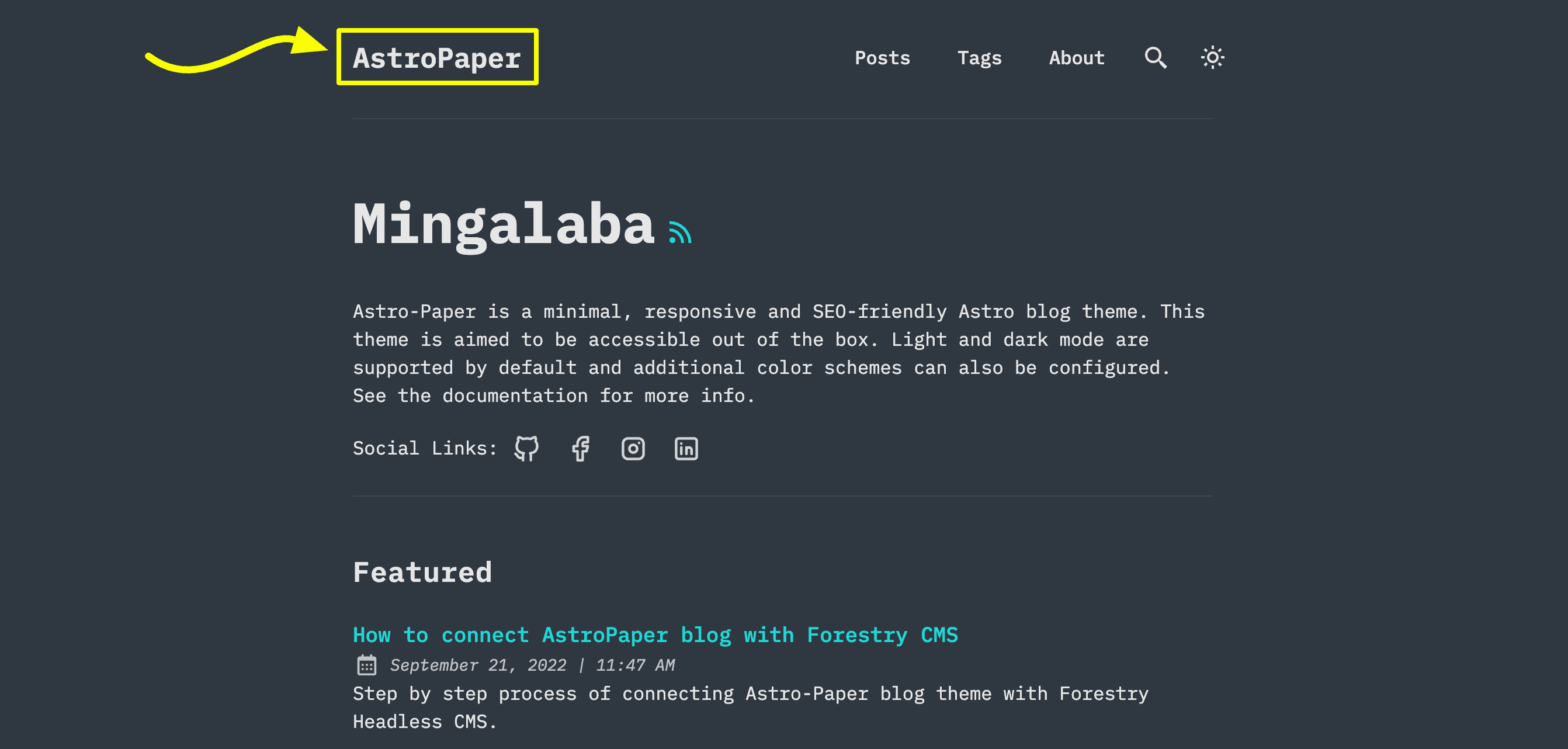
You can specify site's title or logo image in `src/config.ts` file.
|
|
|
|
|
|
|
|
```js
|
|
// file: src/config.ts
|
|
export const LOGO_IMAGE = {
|
|
enable: false,
|
|
svg: true,
|
|
width: 216,
|
|
height: 46,
|
|
};
|
|
```
|
|
|
|
If you specify `LOGO_IMAGE.enable` => `false`, AstroPaper will automatically convert `SITE.title` to the main site text logo.
|
|
|
|
If you specify `LOGO_IMAGE.enable` => `true`, AstroPaper will use the logo image as the site's main logo.
|
|
|
|
You have to specify `logo.png` or `logo.svg` under `/public/assets` directory. Currently, only svg and png image file formats are supported. (**_Important!_** _logo name has to be logo.png or logo.svg)_
|
|
|
|
If your logo image is png file format, you have to set `LOGO_IMAGE.svg` => `false`.
|
|
|
|
It is recommended that you specify width and height of your logo image. You can do that by setting `LOGO_IMAGE.width` _and_ `LOGO_IMAGE.height`
|
|
|
|
## Configuring social links
|
|
|
|
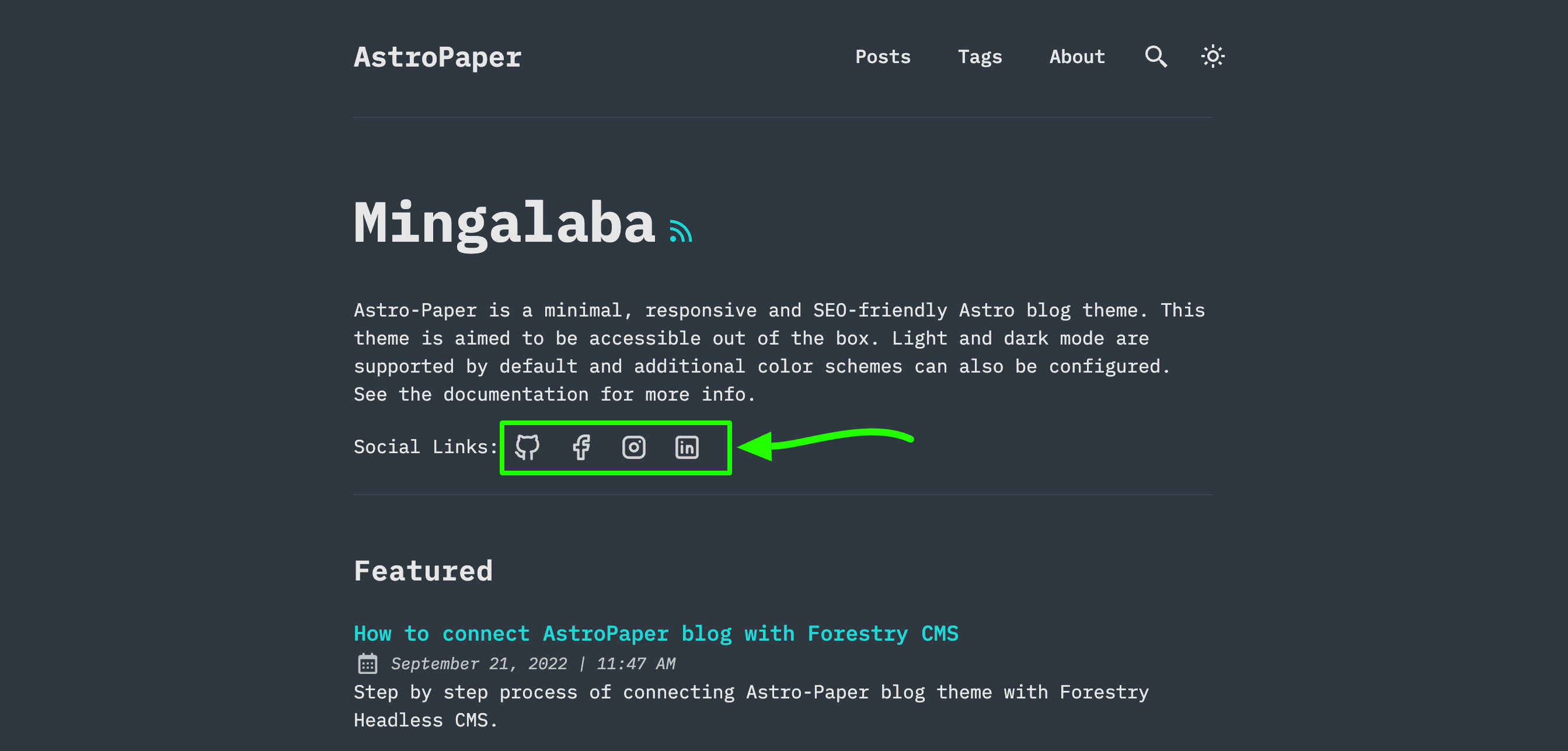
You can configure your own social links along with its icons.
|
|
|
|
|
|
|
|
Currently 20 social icons are supported. (Github, LinkedIn, Facebook etc.)
|
|
|
|
You can specify and enable certain social links in hero section and footer. To do this, go to `/src/config.ts` and then you'll find `SOCIALS` array of object.
|
|
|
|
```js
|
|
// file: src/config.ts
|
|
export const SOCIALS: SocialObjects = [
|
|
{
|
|
name: "Github",
|
|
href: "https://github.com/satnaing/astro-paper",
|
|
linkTitle: ` ${SITE.title} on Github`,
|
|
active: true,
|
|
},
|
|
{
|
|
name: "Facebook",
|
|
href: "https://github.com/satnaing/astro-paper",
|
|
linkTitle: `${SITE.title} on Facebook`,
|
|
active: true,
|
|
},
|
|
{
|
|
name: "Instagram",
|
|
href: "https://github.com/satnaing/astro-paper",
|
|
linkTitle: `${SITE.title} on Instagram`,
|
|
active: true,
|
|
},
|
|
...
|
|
]
|
|
```
|
|
|
|
You have to set specific social link to `active: true` in order to appear your social links in hero and footer section. Then, you also have to specify your social link in `href` property.
|
|
|
|
For instance, if I want to make my Github appear, I'll make it like this.
|
|
|
|
```js
|
|
export const SOCIALS: SocialObjects = [
|
|
{
|
|
name: "Github",
|
|
href: "https://github.com/satnaing", // update account link
|
|
linkTitle: `${SITE.title} on Github`, // this text will appear on hover and VoiceOver
|
|
active: true, // makre sure to set active to true
|
|
}
|
|
...
|
|
]
|
|
```
|
|
|
|
Another thing to note is that you can specify the `linkTitle` in the object. This text will display when hovering on the social icon link. Besides, this will improve accessibility and SEO. AstroPaper provides default link title values; but you can replace them with your own texts.
|
|
|
|
For example,
|
|
|
|
```js
|
|
linkTitle: `${SITE.title} on Twitter`,
|
|
```
|
|
|
|
to
|
|
|
|
```js
|
|
linkTitle: `Follow ${SITE.title} on Twitter`;
|
|
```
|
|
|
|
## Conclusion
|
|
|
|
This is the brief specification of how you can customize this theme. You can customize more if you know some coding. For customizing styles, please read [this article](https://astro-paper.pages.dev/posts/customizing-astropaper-theme-color-schemes/). Thanks for reading.✌🏻
|