mirror of
https://github.com/ChenQihan666/MyBlog-Next.git
synced 2026-08-14 11:29:33 +08:00
 Sat Naing
5cff7c50b9
Sat Naing
5cff7c50b9
* refactor: replace embedded svg with svg icon

* feat: add global and per-post timezone support

- add `SITE.timezone` in config to define a global default timezone.
- allow per-post timezone overrides via `timezone` in frontmatter.
- update date formatting logic to use the correct timezone when rendering timestamps.
- ensure that posts without a timezone fallback to `SITE.timezone`.
- improve consistency between local and deployed timezones.

* refactor: replace `LOCALE` constant with  `SITE.lang`

* docs: update guides

* fix: update code word-break inside markdown table

Closes #466
185 lines
13 KiB
Markdown
185 lines
13 KiB
Markdown
---
|
|
author: Sat Naing
|
|
pubDatetime: 2022-09-23T04:58:53Z
|
|
modDatetime: 2025-03-20T03:15:57.792Z
|
|
title: How to configure AstroPaper theme
|
|
slug: how-to-configure-astropaper-theme
|
|
featured: true
|
|
draft: false
|
|
tags:
|
|
- configuration
|
|
- docs
|
|
description: How you can make AstroPaper theme absolutely yours.
|
|
---
|
|
|
|
AstroPaper is a highly customizable Astro blog theme. With AstroPaper, you can customize everything according to your personal taste. This article will explain how you can make some customizations easily in the config file.
|
|
|
|
## Table of contents
|
|
|
|
## Configuring SITE
|
|
|
|
The important configurations resides in `src/config.ts` file. Within that file, you'll see the `SITE` object where you can specify your website's main configurations.
|
|
|
|
During development, it's okay to leave `SITE.website` empty. But in production mode, you should specify your deployed url in `SITE.website` option since this will be used for canonical URL, social card URL etc.. which are important for SEO.
|
|
|
|
```js
|
|
// file: src/config.ts
|
|
export const SITE = {
|
|
website: "https://astro-paper.pages.dev/", // replace this with your deployed domain
|
|
author: "Sat Naing",
|
|
profile: "https://satnaing.dev/",
|
|
desc: "A minimal, responsive and SEO-friendly Astro blog theme.",
|
|
title: "AstroPaper",
|
|
ogImage: "astropaper-og.jpg",
|
|
lightAndDarkMode: true,
|
|
postPerIndex: 4,
|
|
postPerPage: 4,
|
|
scheduledPostMargin: 15 * 60 * 1000, // 15 minutes
|
|
showArchives: true,
|
|
showBackButton: true, // show back button in post detail
|
|
editPost: {
|
|
enabled: true,
|
|
text: "Suggest Changes",
|
|
url: "https://github.com/satnaing/astro-paper/edit/main/",
|
|
},
|
|
dynamicOgImage: true, // enable automatic dynamic og-image generation
|
|
lang: "en", // html lang code. Set this empty and default will be "en"
|
|
timezone: "Asia/Bangkok", // Default global timezone (IANA format) https://en.wikipedia.org/wiki/List_of_tz_database_time_zones
|
|
} as const;
|
|
```
|
|
|
|
Here are SITE configuration options
|
|
|
|
| Options | Description |
|
|
| --------------------- | --------------------------------------------------------------------------------------------------------------------------------------------------------------------------------------------------------------------------------------------------------------------------------------------------------------------------------------------------------------------------------------------------------------------------------- |
|
|
| `website` | Your deployed website URL |
|
|
| `author` | Your name |
|
|
| `profile` | Your personal/portfolio website URL which is used for better SEO. Put `null` or empty string `""` if you don't have any. |
|
|
| `desc` | Your site description. Useful for SEO and social media sharing. |
|
|
| `title` | Your site name |
|
|
| `ogImage` | Your default OG image for the site. Useful for social media sharing. OG images can be an external image URL or they can be placed under `/public` directory. |
|
|
| `lightAndDarkMode` | Enable or disable `light & dark mode` for the website. If disabled, primary color scheme will be used. This option is enabled by default. |
|
|
| `postPerIndex` | The number of posts to be displayed at the home page under `Recent` section. |
|
|
| `postPerPage` | You can specify how many posts will be displayed in each posts page. (eg: if you set `SITE.postPerPage` to 3, each page will only show 3 posts per page) |
|
|
| `scheduledPostMargin` | In Production mode, posts with a future `pubDatetime` will not be visible. However, if a post's `pubDatetime` is within the next 15 minutes, it will be visible. You can set `scheduledPostMargin` if you don't like the default 15 minutes margin. |
|
|
| `showArchives` | Determines whether to display the `Archives` menu (positioned between the `About` and `Search` menus) and its corresponding page on the site. This option is set to `true` by default. |
|
|
| `showBackButton` | Determines whether to display the `Go back` button in each blog post. |
|
|
| `editPost` | This option allows users to suggest changes to a blog post by providing an edit link under blog post titles. This feature can be disabled by setting `SITE.editPost.enabled` to `false`. |
|
|
| `dynamicOgImage` | This option controls whether to [generate dynamic og-image](https://astro-paper.pages.dev/posts/dynamic-og-image-generation-in-astropaper-blog-posts/) if no `ogImage` is specified in the blog post frontmatter. If you have many blog posts, you might want to disable this feature. See the [trade-off](https://astro-paper.pages.dev/posts/dynamic-og-image-generation-in-astropaper-blog-posts/#trade-off) for more details. |
|
|
| `lang` | Used as HTML ISO Language code in `<html lang"en">`. Default is `en`. |
|
|
| `timezone` | This option allows you to specify your timezone using the [IANA format](https://en.wikipedia.org/wiki/List_of_tz_database_time_zones). Setting this ensures consistent timestamps across your localhost and deployed site, eliminating time differences. |
|
|
|
|
## Configuring logo or title
|
|
|
|
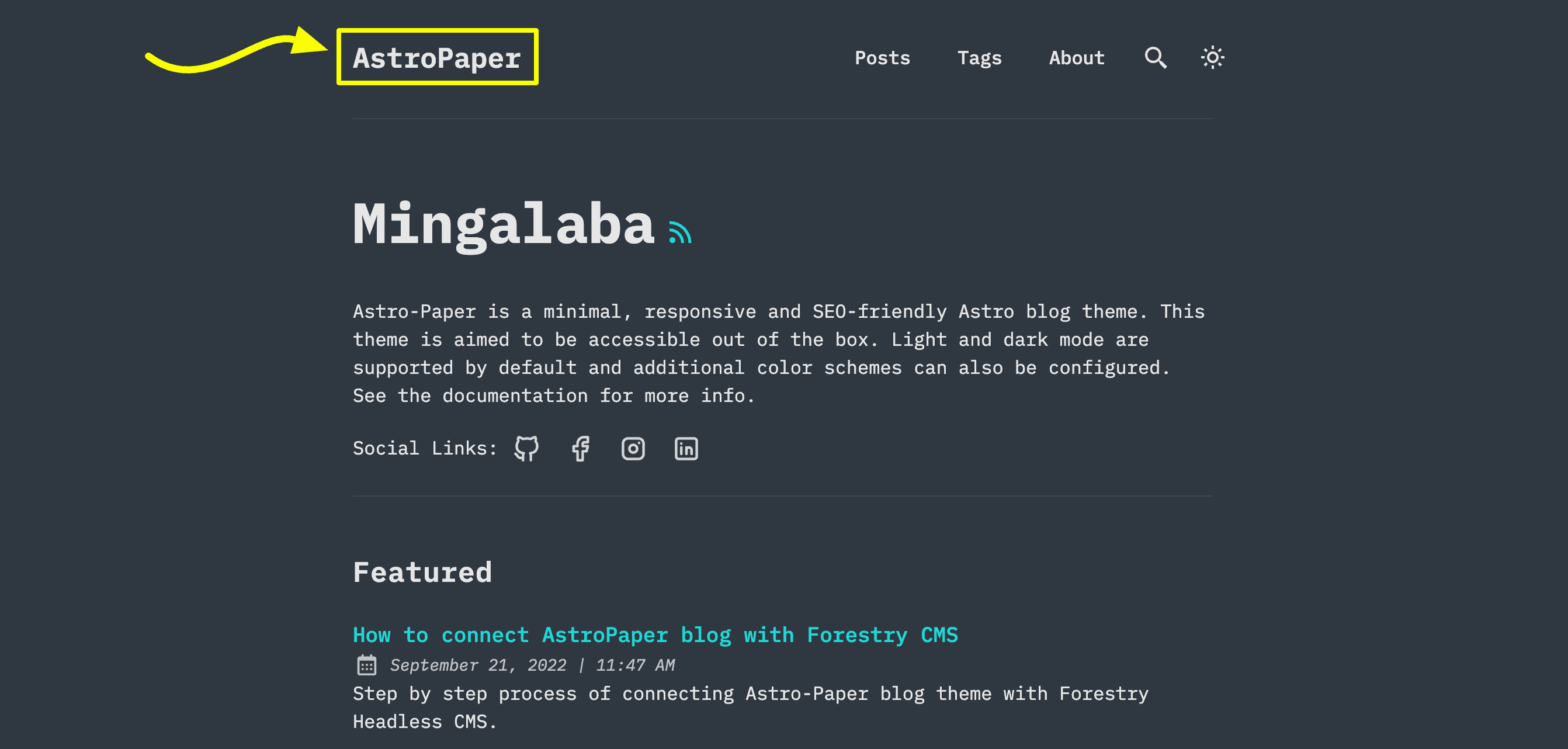
Prior to AstroPaper v5, you can update your site name/logo in `LOGO_IMAGE` object inside `src/config.ts` file. However, in AstroPaper v5, this option has been removed in favor of Astro's built-in SVG and Image components.
|
|
|
|
|
|
|
|
There are 3 options you can do:
|
|
|
|
### Option 1: SITE title text
|
|
|
|
This is the easiest option. You just have to update `SITE.title` in `src/config.ts` file.
|
|
|
|
### Option 2: Astro's SVG component
|
|
|
|
You might want to use this option if you want to use an SVG logo.
|
|
|
|
- First add an SVG inside `src/assets` directory. (eg: `src/assets/dummy-logo.svg`)
|
|
- Then import that SVG inside `src/components/Header.astro`
|
|
|
|
```astro
|
|
---
|
|
// other imports
|
|
import DummyLogo from "@/assets/dummy-logo.svg";
|
|
---
|
|
```
|
|
|
|
- Finally, replace `{SITE.title}` with imported logo.
|
|
|
|
```html
|
|
<a
|
|
href="/"
|
|
class="absolute py-1 text-left text-2xl leading-7 font-semibold whitespace-nowrap sm:static"
|
|
>
|
|
<DummyLogo class="scale-75 dark:invert" />
|
|
<!-- {SITE.title} -->
|
|
</a>
|
|
```
|
|
|
|
The best part of this approach is that you can customize your SVG styles as needed. In the example above, you can see how the SVG logo color can be inverted in dark mode.
|
|
|
|
### Option 3: Astro's Image component
|
|
|
|
If your logo is an image but not SVG, you can use Astro's Image component.
|
|
|
|
- Add your logo inside `src/assets` directory. (eg: `src/assets/dummy-logo.png`)
|
|
- Import `Image` and your logo in `src/components/Header.astro`
|
|
|
|
```astro
|
|
---
|
|
// other imports
|
|
import { Image } from "astro:assets";
|
|
import dummyLogo from "@/assets/dummy-logo.png";
|
|
---
|
|
```
|
|
|
|
- Then, replace `{SITE.title}` with imported logo.
|
|
|
|
```html
|
|
<a
|
|
href="/"
|
|
class="absolute py-1 text-left text-2xl leading-7 font-semibold whitespace-nowrap sm:static"
|
|
>
|
|
<image src="{dummyLogo}" alt="Dummy Blog" class="dark:invert" />
|
|
<!-- {SITE.title} -->
|
|
</a>
|
|
```
|
|
|
|
With this approach, you can still adjust your image's appearance using CSS classes. However, this might not always fit what you want. If you need to display different logo images based on light or dark mode, check how light/dark icons are handled inside the `Header.astro` component.
|
|
|
|
## Configuring social links
|
|
|
|
You can configure social links in `SOCIALS` object inside `src/constants.ts`.
|
|
|
|

|
|
|
|
```ts
|
|
export const SOCIALS = [
|
|
{
|
|
name: "Github",
|
|
href: "https://github.com/satnaing/astro-paper",
|
|
linkTitle: ` ${SITE.title} on Github`,
|
|
icon: IconGitHub,
|
|
},
|
|
{
|
|
name: "X",
|
|
href: "https://x.com/username",
|
|
linkTitle: `${SITE.title} on X`,
|
|
icon: IconBrandX,
|
|
},
|
|
{
|
|
name: "LinkedIn",
|
|
href: "https://www.linkedin.com/in/username/",
|
|
linkTitle: `${SITE.title} on LinkedIn`,
|
|
icon: IconLinkedin,
|
|
},
|
|
{
|
|
name: "Mail",
|
|
href: "mailto:yourmail@gmail.com",
|
|
linkTitle: `Send an email to ${SITE.title}`,
|
|
icon: IconMail,
|
|
},
|
|
] as const;
|
|
```
|
|
|
|
## Configuring share links
|
|
|
|
You can configure share links in `SHARE_LINKS` object inside `src/constants.ts`.
|
|
|
|

|
|
|
|
## Conclusion
|
|
|
|
This is the brief specification of how you can customize this theme. You can customize more if you know some coding. For customizing styles, please read [this article](https://astro-paper.pages.dev/posts/customizing-astropaper-theme-color-schemes/). Thanks for reading.✌🏻
|